Popular Posts

Diberdayakan oleh Blogger.

Arsip Blog

Sabtu, 28 April 2012

Johny Storage, Template Magazine untuk Blog Berita

Karena ini malem Minggu saya singkat saja artikel kali ini. Template ini sekilas tampak seperti Mas Paper versi 1, hanya pada template kali ini warna didominasi putih dan hitam. Template ini sangat cocok untuk blog berita, ya memang saya untuk saat ini akan fokus dulu dalam membuat template blogger untuk blog berita, karena untuk template yang lain saya belum mahir apalagi yang bentuknya blogazine (pernah seorang teman blogger meminta saya membuat template blogazine via email), disamping keterbatasan kemampuan saya dalam pemahaman jQuery, dalam membuat template seperti blogazine dibutuhkan kemampuan dalam mengolah gambar dengan menggunakan software tertentu, sehingga bisa lebih cantik dan menarik.

johny storage

Seperti pada template Mas Paper 2 dan Johny Simplemag, template kali ini juga semuanya serba otomatis. Anda tinggal memasukkan label dan kode script ke dalam kotak HTML/Javascript maka fitur-fitur yang ada pada template ini akan muncul secara otomatis. Langsung saja saya akan jelaskan satu persatu untuk penggunaan template ini :
  1. Saya mulai dari atas, News Ticker atau headline news yang ada diatas header. Untuk mengganti dengan headline dari blog Anda masuk ke Edit HTML (gunakan control + F untuk mempersingkat), cari URL http://johny-storage.blogspot.com. Setelah ketemu ganti dengan URL blog Anda. Demikian juga dengan kotak pencarian atau search box cari URL http://johny-storage.blogspot.com ganti dengan URL blog Anda.
  2. Yang kedua adalah kotak email berlangganan, letaknya persis diatas image slider. Untuk mengganti email berlangganan, cari kode dibawah ini pada Edit HTML (jangan lupa untuk mencentang kotak expand widget templates) :
    <form action='http://feedburner.google.com/fb/a/mailverify' id='subscribe' method='post' onsubmit='window.open(&apos;http://feedburner.google.com/fb/a/mailverify?uri=blogspot/htbgh&apos;, &apos;popupwindow&apos;, &apos;scrollbars=yes,width=550,height=520&apos;);return true' target='popupwindow'><input id='subbox' name='email' onblur='if (this.value == &apos;&apos;) {this.value = &apos;Enter your email address...&apos;;}' onfocus='if (this.value == &apos;Enter your email address...&apos;) {this.value = &apos;&apos;;}' type='text' value='Enter your email address...'/><input name='uri' type='hidden' value='blogspot/htbgh'/><input name='loc' type='hidden' value='en_US'/><input id='subbutton' type='submit' value='Enter'/></form>
    Keterangan :
    Warna biru : ganti dengan alamat feed anda.
Pemasangan Widget

Sebelum masuk ke pemasangan widget, coba Anda perhatikan struktur layout yang terdapat pada template Johny Storage di bawah ini :

layout johny storage
  1. Untuk menampilkan slider, masuk ke layout kemudian klik edit pada kotak HTML/Javascript. Masukkan kode berikut ini ke dalamnya :
    <div id='featuredContent'>
    <div class='sliderwrapper' id='featured-slider'>
    <script>
    document.write("<script src=\"/feeds/posts/default/-/sport?max-results="+numposts3+"&orderby=published&alt=json-in-script&callback=showrecentposts3\"><\/script>");
    </script>
    </div>
    <div id='paginate-featured-slider'>
    <ul>
    <script>
    document.write("<script src=\"/feeds/posts/default/-/sport?max-results="+numposts3+"&orderby=published&alt=json-in-script&callback=showrecentposts4\"><\/script>");
    </script>
    </ul>
    <div class='clear'></div>
    </div>
    <script type='text/javascript'>
    featuredcontentslider.init({
    id: "featured-slider", //id of main slider DIV
    contentsource: ["inline", ""], //Valid values: ["inline", ""] or ["ajax", "path_to_file"]
    toc: "markup", //Valid values: "#increment", "markup", ["label1", "label2", etc]
    nextprev: ["", ""], //labels for "prev" and "next" links. Set to "" to hide.
    revealtype: "mouseover", //Behavior of pagination links to reveal the slides: "click" or "mouseover"
    enablefade: [true, 0.4], //[true/false, fadedegree]
    autorotate: [true, 5000], //[true/false, pausetime]
    onChange: function(previndex, curindex){ //event handler fired whenever script changes slide
    //previndex holds index of last slide viewed b4 current (1=1st slide, 2nd=2nd etc)
    //curindex holds index of currently shown slide (1=1st slide, 2nd=2nd etc)
    }
    })
    </script>
    </div>
    Keterangan :
    Perhatikan tulisan warna biru diatas, itu adalah label yang saya masukkan pada slider. Silahkan anda ganti sesuai keinginan. Dan warna merah adalah keterangan slider yang berupa kecepatan slider, efek mouseover dan lain-lain, tidak harus dimasukkan. Untuk lebih jelasnya Anda bisa membaca pada tutorial membuat slider tersebut disini.
  2. Sekarang untuk label 1 sampai dengan label 6 seperti pada layout diatas, caranya sangat gampang. Anda tinggal ketik/masukkan label yang diinginkan ke dalam kotak tersebut. Perhatikan gambar dibawah ini :

    Keterangan :
    Ganti news dengan label Anda, dan ganti judul widget (label 1) dengan judul yang sesuai dengan label.
  3. Sekarang kita menuju pada tabber sidebar yang terletak di sebelah kanan. Terdapat tiga tabber disitu, yaitu recent post, popular post dan comment. Untuk kolom recent post letakkan kode berikut ke dalamnya :
    <ul>
    <script>
    document.write("<script src=\"/feeds/posts/default?max-results="+numposts5+"&orderby=published&alt=json-in-script&callback=showrecentposts6\"><\/script>");
    </script>
    </ul>
    Untuk popular post anda tinggal masuk ke layout kemudian pilih widget popular post, silahkan pilih disitu berapa post yang ingin ditampilkan. Dan untuk comment atau recent comment silahkan Anda baca tutorialnya disini. Ketiga tabber sidebar ini boleh Anda rubah sesuai keinginan, letaknya di sidebar kanan baris kedua.
  4. Slider Carousel yang terdapat di atas footer bekerja secara otomatis menampilkan artikel terbaru Anda disitu. Jadi disini Anda tidak perlu merubah atau menambahkan kode script lagi, tapi jika Anda ingin menampilkan per kategori di dalam slider tersebut silahkan baca pada tutorial membuat slider Carousel tersebut disini.
Apa lagi ya, sepertinya hanya itu yang perlu saya jelaskan untuk penggunaan dan pemasangan widget yang terdapat pada template Johny Storage ini. Karena waktu sudah menunjukkan pukul 8 malam lebih, sudah waktunya untuk berkeliaran cari mangsa... hehehehe. Bagi yang masih bingung dan butuh penjelasan silahkan tinggalkan komentar di bawah, selamat mencoba dan happy weekend

Tiga pilihan warna lain untuk template ini :

Update Templates

My Google Code was banned, there's so many script that I put in there can't be opened. But I already fixed it with the updates ones, you can re-download this template or you can change some script below

Click this link and read subtitle "Update Template" in that post for the latest updates of Javascript Description: Johny Storage, Template Magazine untuk Blog Berita Rating: 4.5 Reviewer: Unknown - ItemReviewed: Johny Storage, Template Magazine untuk Blog Berita

Jumat, 27 April 2012

7 steps to get your blog readers comment endlessly

lots of Comments
A good blog needs constant traffic for its survival from its readers who contribute to the process of continuous conversation. If you find that your blog is not getting enough comments, then it could be that you are not sufficiently stimulating your readers for inputs to your posts. It may not be the content itself which you are providing but perhaps you are lacking in opinions. Without your opinions and arguments there is very little that your readers can comment about. Therefore, your blog has to be really thought provoking enough to get the desired response from your readers. There are some techniques which might be useful if you want to improve the comments in your blog posts.


1. End with a question
Make your question as general as possible enabling more freedom for your readers to comment without feeling any constraint. Your question could give an anchor point to the readers who might not have any idea on what to comment about. If you post your question at the end of your post, interested readers will definitely give their inputs. Otherwise, you can always place a question right in your heading. This is another effective way of getting your readers to respond as you have already placed a question in their minds right from the start.


2. Invite comments and ask for contributions
contribute
By inviting your readers to make comments it could trigger a response to some extent. From here you can pick up and interact and this can put across to your readers that you value their input. However, as the activity in your comment section expands, you may get less time in answering. This need not bother you as the readers will themselves answer some of the questions. Just make sure that you do not ignore your comment threads for too long or completely. Another way is of getting your readers to contribute to your incomplete post. You could use the numbered list trick and ask your readers to add on to the list as a way of contributing. Keep your readers interest by making them feel that they are actually contributing to your article with their comments.

3. Be prompt in your response
If your reader posts you a question then you must make it a point to answer them promptly. This is a way of telling your reader that you value his/her comment and is a way of thanking them. Your reader will take your delay as making her/his comment appear unimportant and will lose interest in your blog. Therefore, address the question posted to you on priority as only you can reply to it. This way the reader will not feel ignored.

thumbs up
4. Acknowledge good comments
Acknowledge those comments which stand out as particularly good or helpful as this makes your readers feel that their input is important. By motivating your readers further you can capitalize on their need for social approval. Simply by making a particular commentator feel special with approval incentive can really make them feel recognized and special.

5. Reduce the barriers to commenting
By being user friendly your readers can comment on your blog without having to go through a process of registering. They may find the idea of logging in and registering a little too taxing. Therefore, make sure that you do not hinder your readers from being able to post their comments.

6. Dealing with criticisms
Never take a defensive approach when it comes to criticism. Rather, give such criticism the constructive approach so that your readers find something useful in your approach. You could provide some workable solutions by focusing on some common problems.


Role Model
7. Set a good example
If you want people to comment, then you got to take the initiative by commenting in your own blog and other similar blogs in the community. Since you need to attract readers and other bloggers to your blog, you need to leave a well thought out comment. Always leave a link to your site along with a great comment.

Apart from all these useful techniques, try to remember that original, credible and valuable content is the best qualification for a good blog. More readers will be attracted to your blog as your visibility increases.

Author Bio

Alyssa ClarkeThis is a Guest Post by Alyssa Clarke who is a blogger and also happens to be a tech buff. She love spending of tech stuff and her recent purchase is a new LG Optimus 3D smartphone. She recently read an article on the most expensive phone in the world and instantly fell in love with it. You can find her on Twitter.

Description: 7 steps to get your blog readers comment endlessly Rating: 4.5 Reviewer: Unknown - ItemReviewed: 7 steps to get your blog readers comment endlessly

Kamis, 26 April 2012

Why Blogger is Better than Wordpress and Tumblr

blogger

It seems like modern internet platforms and applications breed faster than bacteria. Within moments of the big new thing taking the stage, there’s tons of copycats and new versions powered by big old companies. The same is true of the blogging platform. In the beginning there were just a few places to write online diaries or weblogs. There was Genie, BiX and so on. With the blog revolution becoming tied into advertising, search engine algorithms and social networking, there are dozens and dozens of platforms to choose from


Out of the chaos the strong survive and the weak become either niches or utterly irrelevant. Many would argue that the three best mainstream and best of all free, blogging platforms are Blogger, Wordpress and Tumblr. Take this site’s word for it and push all thoughts of other platforms out of your mind for a few moments. Still, this leaves you with a choice between three. Of the three, Blogger is best and this article is determined to prove why.

The Power Behind the Throne
First off, look at the power behind the curtain with regards to each blogging platform. Both Wordpress and Tumblr are independently owned businesses. This means they specialize in exactly what they do; providing users the opportunity to blog. Blogger on the other hand are powered by Google.

Why does this matter? It matters because of stability, finance and most important of all in the modern world, interactivity. Let’s get the first two out of the way first. Blogger is more stable because Google has a proven business model and has enough money to make sure any Blogger downturn or bad company performance in one sector is offset by another. In other words, users do not have to worry about the company disappearing. If you blog, Blogger will blog you.

Interactivity
Interactivity is the ability of one website to work with others or for one piece of software to work on different computer systems. If you want to create an account with Tumblr you have to use an email address, create a username, profile and so on like with any other site. With Wordpress you can do this, but if you have a Wordpress package through your webhost then you can bypass this. Either way, it’s pretty fiddly and time consuming. With Blogger you can use your Gmail and Google+ accounts to create your Blogger profile, it takes just a few seconds.

wordpress

In terms of pure blogging it means your ability to link your blog to all manner of social sites and widgets. All three platforms allow users to decide how comments work, how visitors can share the webpage or upload videos and photos. Blogger has a serious advantage over its rivals in terms of applications such as adverts and if you look hard enough, you will probably even find a widget integrating your blog with Fedex.

Let’s face it. For many people blogging is a business. Some successful websites on technology (TechCrunch), finance (smallcapnetwork) and so on evolved from blogs. One way a blog can make cash is through adverts. Google leads the way in advert generation through its Adsense application. With blogging sites such as Wordpress and Tumblr the user needs to generate a html code and then paste it into the correct part of the webpage’s code. Get it wrong and the page just looks awful (if it loads at all). With Blogger being owned by Google, the Adsense program can be integrated automatically into the blog without the user having to worry about fiddly codes.

Networking
Sticking with interconnectivity, as well as allowing users to integrate Blogger with other Google platforms, the platform is the best in the market for connecting to other people. First, Blogger has a huge blogging community and makes it very easy to comment (unlike Tumblr) and to build connections with other bloggers around the world either within your social circle or within your chosen niche. As a part of this, Google have integrated friend connect to allow users to bring together their friends.

Blogging

Blogger is famed for its ease of use. Like with Wordpress and Tumblr there are a wide range of templates to use. These define how your blog looks. They are clean and well designed. Blogger do allow a limited amount of template editing, which you can only do on Wordpress if you purchase a better account type. The Blogger dashboard is easy to use and allows for JavaScript text widgets, which cannot be used on Wordpress or Tumblr.

tumblr

Once someone has written their blog, they want it read by as many people as possible. This is where Blogger once again kicks in. Possibly because it is linked to Google, the site has already been processed by Google and optimized for its search engine. This automatic application of SEO helps Blogger pages rank highly in web searches. Blog posts are also indexed faster on Blogger than on Tumblr and Wordpress.

Blogger is excellent for building a basic blog, integrating adverts and for creating a big network of followers and friends. It is also perfect for those looking for a simple blogging platform that is easy to use and requires a minimum of form filling.

Author Bio


This is a Guest Post by Imogen Reed who is an active freelance writer and President of the Moon Appreciation Society. You can find her on Google+.


Description: Why Blogger is Better than Wordpress and Tumblr Rating: 4.5 Reviewer: Unknown - ItemReviewed: Why Blogger is Better than Wordpress and Tumblr

Rabu, 25 April 2012

Google AdWords Coupon Giveaway

Google AdWords Coupon
Google AdWords is a tool to help you in advertising your products or services in Google, and its affiliate sites via the various Ads placed in them . With the help of it you can target specific audience in your niche with particular keywords and other parameters.
Today we are bringing a super cool giveaway for all our readers. A chance to win a 100$ AdWords Coupon and use it to market your blog/website all across Google !! To take part read along


To take part just enter your Name and Email address in the Punchtab Giveaway Widget below. This will enter you in the draw to win the $100 AdWords Coupon. There are options available to have a higher chance of winning by doing Extra Entries like Liking and +1'ing . To increase your chances even further you can refer users to this Giveaway by using your referral link. Each user that takes part in this Giveaway using your link will earn you 5 Entries. The formula is simple :


More The Number of Entries , Higher the Chances of Winning

Get Started


What Happens If you Win !!
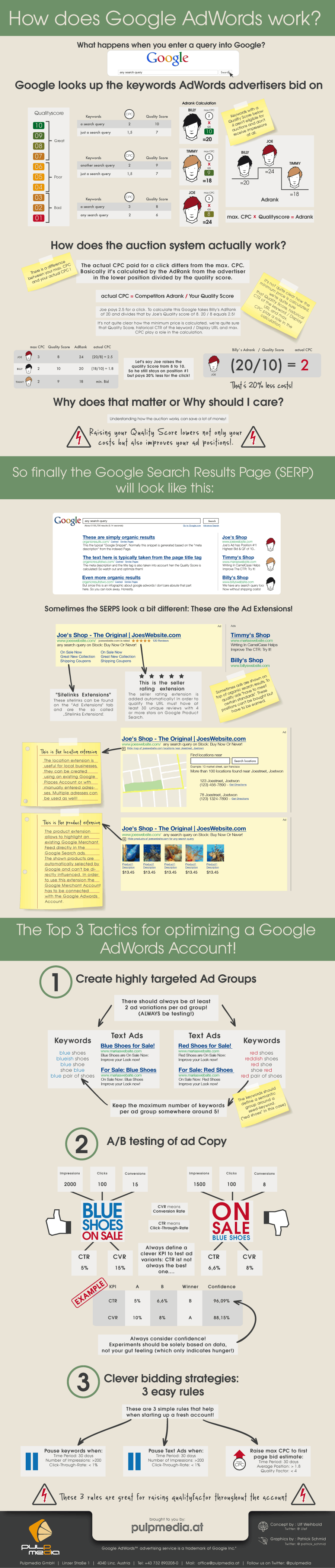
Once you will have your hands on the Coupon code, you will be ready to start. Don't worry if you don't know much about AdWords, the Infograhpics below explains how really AdWords works and some basic tactics to follow to get the maximum from it.


How does Google AdWords work? - infographic
Infographic by Pulpmedia Online Marketing

The winner will be selected by Punchtab randomly on May 26th 2012 and will contacted by email.

Good luck to Everyone!! Description: Google AdWords Coupon Giveaway Rating: 4.5 Reviewer: Unknown - ItemReviewed: Google AdWords Coupon Giveaway

Membuat Content Slider Image Otomatis

Sebelum template pada demo slider ini saya bagikan nantinya, saya akan mengulas satu persatu terlebih dahulu fitur yang ada pada template ini. Dan disini Anda akan mengetahui bagaimana sebuah template akan bekerja bersama dengan beberapa fitur yang ada di dalamnya secara otomatis. Prinsip kerja dari Content Slider ini hampir sama pada artikel saya sebelumnya tentang membuat slider otomatis pada template Sporty Magazine 2, bedanya hanya pada tampilan thumbnail kecil yang saya letakkan di bawah dan efek mouseover yang ditambahkan pada slider ini.

Banyak sekali tutorial membuat image slider yang sudah beredar di internet, dari beberapa kasus yang saya temui kebanyakan masih memasukkan URL gambar dan keterangan satu persatu, dan itu sangat merepotkan dan membutuhkan ketelitian, meskipun ada beberapa diantaranya yang sudah otomatis, disini saya hanya memberikan alternatif lain untuk memperbanyak koleksi teman-teman semua mengenai prinsip dasar dari kerja sebuah image slider otomatis pada blog platform blogger.  Tampilan image slider seperti gambar dibawah, jika anda perhatikan sebenernya inilah dasar dari pembuatan Yahoo slider sederhana yang saya pasang pada template Johny Simplemag. Anda bisa modifikasi sendiri sesuai selera.

image slider otomatis


Di blog demo ada slider image Carousel otomatis, jika Anda tertarik silahkan baca tutorialnya pada Membuat Slider Carousel Otomatis Berdasarkan Label.

Cara Pembuatan

Langsung saja pada langkah-langkah pembuatan Content Slider Image otomatis ini :
  1. Langkah pertama, Anda mesti login ke blogger dengan akun Anda
  2. Pilih blog yang ingin anda tambahkan slider image ini.
  3. Setelah itu masuk ke template >> Edit HTML, kemudian centang expand widget templates
  4. Untuk berjaga-jaga agar tidak terjadi kesalahan dalam pengeditan nantinya, backup dulu template anda.
  5. Langkah berikutnya, letakkan kode berikut ini diatas kode ]]></b:skin> :
    #featuredContent{float:left;width:407px;margin-right:10px;display:inline}
    #featured-slider{position:relative;overflow:hidden;width:407px;height:245px}
    #featured-slider .sliderPostInfo{position:absolute;bottom:2px;width:407px;min-height:30px;height:auto!important;background:url(https://blogger.googleusercontent.com/img/b/R29vZ2xl/AVvXsEi31VxJjenWYU0NKev77oTzZ9tfl5RjI_YWeJ1EFNJtS5Z6Z6cngxrnmUI8QpEfZO_JN0iQzWmvEznek4HusRu4IoBCmtj_KbRAjgcyIXmVUhVggW10Ayfc_am6pRIp5KFiTX_oyJ51AxLk/s1600/transparant.png)}
    #featured-slider .sliderPostInfo p{color:#fff;font-size:1.1em;padding:0 5px}
    #featured-slider .sliderPostInfo h2{color:#FFF;font:bold 14px Tahoma;text-transform:none;padding:0 5px}
    #featured-slider .contentdiv{visibility:hidden;position:absolute;left:0;top:0;z-index:1}
    #paginate-featured-slider{display:block;background-color:#f0f0f0;margin-bottom:0;padding:0 0 5px}
    #paginate-featured-slider ul{width:415px;padding-bottom:0;list-style:none}
    #paginate-featured-slider ul li{display:inline;width:75px;float:left;margin-left:0;margin-right:8px;margin-bottom:3px}
    #paginate-featured-slider img{padding-top:5px;background:#f0f0f0}
    #paginate-featured-slider a img{border-top:4px solid #f0f0f0}
    #paginate-featured-slider a:hover img,#paginate-featured-slider a.selected img{border-top:4px solid #357798}
    Tulisan warna biru diatas adalah panjang dan lebar slider pada demo, silahkan sesuaikan ukurannya.
  6. Masih pada posisi Edit HTML, masukkan kode berikut ini diatas kode </head> :
    <script src='http://ajax.googleapis.com/ajax/libs/jquery/1.7.2/jquery.min.js' type='text/javascript'/>
    <script src='https://masolis-javascript.googlecode.com/svn/trunk/contentslider.js' type='text/javascript'/>

    <script type='text/javascript'>
    //<![CDATA[
    imgr = new Array();
    imgr[0] = "https://blogger.googleusercontent.com/img/b/R29vZ2xl/AVvXsEjRwyNZtH2LbOEiQKG9aRcpwyWiUxnEyigQF6efjPdU7JRt1hJ7fSomVC6QUcuXYTYjFtniU2zqsdkXv8Uv5E0un6dk1pMSKw0FVTMoOEtXXCl7hBmCgHESlMwF2ZycbzS8qNwIDdWqjdE/s1600/no+image.jpg";
    showRandomImg = true;

    aBold = true;

    summaryPost = 100;
    summaryTitle = 25;

    numposts3 = 5;

    function removeHtmlTag(strx,chop){
    var s = strx.split("<");
    for(var i=0;i<s.length;i++){
    if(s[i].indexOf(">")!=-1){
    s[i] = s[i].substring(s[i].indexOf(">")+1,s[i].length);
    }
    }

    s = s.join("");
    s = s.substring(0,chop-1);
    return s;
    }
    function showrecentposts3(json) {
        j = (showRandomImg) ? Math.floor((imgr.length+1)*Math.random()) : 0;
        img  = new Array();

          for (var i = 0; i < numposts3; i++) {
            var entry = json.feed.entry[i];
            var posttitle = entry.title.$t;
            var pcm;
            var posturl;
            if (i == json.feed.entry.length) break;
            for (var k = 0; k < entry.link.length; k++) {
                  if (entry.link[k].rel == 'alternate') {
                    posturl = entry.link[k].href;
                    break;
                  }
            }
           
            for (var k = 0; k < entry.link.length; k++) {
                  if (entry.link[k].rel == 'replies' && entry.link[k].type == 'text/html') {
                    pcm = entry.link[k].title.split(" ")[0];
                    break;
                  }
            }
           
            if ("content" in entry) {
                  var postcontent = entry.content.$t;}
            else
            if ("summary" in entry) {
                  var postcontent = entry.summary.$t;}
            else var postcontent = "";
           
            postdate = entry.published.$t;
       
        if(j>imgr.length-1) j=0;
        img[i] = imgr[j];
       
        s = postcontent    ; a = s.indexOf("<img"); b = s.indexOf("src=\"",a); c = s.indexOf("\"",b+5); d = s.substr(b+5,c-b-5);

        if((a!=-1)&&(b!=-1)&&(c!=-1)&&(d!="")) img[i] = d;

        //cmtext = (text != 'no') ? '<i><font color="'+acolor+'">('+pcm+' '+text+')</font></i>' : '';


        var month = [1,2,3,4,5,6,7,8,9,10,11,12];
        var month2 = ["Jan","Feb","Mar","Apr","May","Jun","Jul","Aug","Sep","Oct","Nov","Dec"];

        var day = postdate.split("-")[2].substring(0,2);
        var m = postdate.split("-")[1];
        var y = postdate.split("-")[0];

        for(var u2=0;u2<month.length;u2++){
            if(parseInt(m)==month[u2]) {
                m = month2[u2] ; break;
            }
        }

        var daystr = day+ ' ' + m + ' ' + y ;

        var trtd = '<div class="contentdiv"><a href="'+posturl+'"><img width="407" height="240" class="alignnone" src="'+img[i]+'"/></a><div class="sliderPostInfo"><h2 class="featuredTitle"><a href="'+posturl+'">'+posttitle+'</a></h2><p>'+removeHtmlTag(postcontent,summaryPost)+'...</p></div></div>';
        document.write(trtd);


        j++;
    }

    }

    function showrecentposts4(json) {
        j = (showRandomImg) ? Math.floor((imgr.length+1)*Math.random()) : 0;
        img  = new Array();

          for (var i = 0; i < numposts3; i++) {
            var entry = json.feed.entry[i];
            var posttitle = entry.title.$t;
            var pcm;
            var posturl;
            if (i == json.feed.entry.length) break;
            for (var k = 0; k < entry.link.length; k++) {
                  if (entry.link[k].rel == 'alternate') {
                    posturl = entry.link[k].href;
                    break;
                  }
            }
           
            for (var k = 0; k < entry.link.length; k++) {
                  if (entry.link[k].rel == 'replies' && entry.link[k].type == 'text/html') {
                    pcm = entry.link[k].title.split(" ")[0];
                    break;
                  }
            }
           
            if ("content" in entry) {
                  var postcontent = entry.content.$t;}
            else
            if ("summary" in entry) {
                  var postcontent = entry.summary.$t;}
            else var postcontent = "";
           
            postdate = entry.published.$t;
       
        if(j>imgr.length-1) j=0;
        img[i] = imgr[j];
       
        s = postcontent    ; a = s.indexOf("<img"); b = s.indexOf("src=\"",a); c = s.indexOf("\"",b+5); d = s.substr(b+5,c-b-5);

        if((a!=-1)&&(b!=-1)&&(c!=-1)&&(d!="")) img[i] = d;

        //cmtext = (text != 'no') ? '<i><font color="'+acolor+'">('+pcm+' '+text+')</font></i>' : '';


        var month = [1,2,3,4,5,6,7,8,9,10,11,12];
        var month2 = ["Jan","Feb","Mar","Apr","May","Jun","Jul","Aug","Sep","Oct","Nov","Dec"];

        var day = postdate.split("-")[2].substring(0,2);
        var m = postdate.split("-")[1];
        var y = postdate.split("-")[0];

        for(var u2=0;u2<month.length;u2++){
            if(parseInt(m)==month[u2]) {
                m = month2[u2] ; break;
            }
        }

        var daystr = day+ ' ' + m + ' ' + y ;

        var trtd = '<li><a class="toc" href="#"><img width="75" height="50" class="alignnone" src="'+img[i]+'"/></a></li>';
        document.write(trtd);

        j++;
    }

    }

    //]]>
    </script>
    Keterangan :
    Kode script warna merah (paling atas) adalah kode script jQuery.min.js seri terbaru yang saya gunakan untuk membuat slider ini. Jika pada template Anda sudah terdapat jQuery.min.js walaupun serinya berbeda, kode warna merah diatas tidak perlu lagi Anda masukkan. Cukup satu jQuery.min.js yang ada di template, terserah mau seri berapa, kalau bisa versi yang terbaru.
    Warna biru : Jumlah post yang ditampilkan dalam slider
    Warna hijau : Panjang dan lebar image besar
    Warna merah tua : Panjang dan lebar image kecil
  7. Setelah langkah diatas, save templates terlebih dahulu. Setelah itu menuju ke layout >> add gadget masukkan kode ini pada kotak HTML/Javascript :

    <div id='featuredContent'>
    <div class='sliderwrapper' id='featured-slider'>
    <script>
    document.write("<script src=\"/feeds/posts/default/-/sport?max-results="+numposts3+"&orderby=published&alt=json-in-script&callback=showrecentposts3\"><\/script>");
    </script>
    </div>
    <div id='paginate-featured-slider'>
    <ul>
    <script>
    document.write("<script src=\"/feeds/posts/default/-/sport?max-results="+numposts3+"&orderby=published&alt=json-in-script&callback=showrecentposts4\"><\/script>");
    </script>
    </ul>
    <div class='clear'></div>
    </div>
    <script type='text/javascript'>
    featuredcontentslider.init({
    id: "featured-slider", //id of main slider DIV
    contentsource: ["inline", ""], //Valid values: ["inline", ""] or ["ajax", "path_to_file"]
    toc: "markup", //Valid values: "#increment", "markup", ["label1", "label2", etc]
    nextprev: ["", ""], //labels for "prev" and "next" links. Set to "" to hide.
    revealtype: "mouseover", //Behavior of pagination links to reveal the slides: "click" or "mouseover"
    enablefade: [true, 0.4], //[true/false, fadedegree]
    autorotate: [true, 5000], //[true/false, pausetime]
    onChange: function(previndex, curindex){ //event handler fired whenever script changes slide
    //previndex holds index of last slide viewed b4 current (1=1st slide, 2nd=2nd etc)
    //curindex holds index of currently shown slide (1=1st slide, 2nd=2nd etc)
    }
    })
    </script>
    </div>
    Keterangan :
    Perhatikan tulisan warna biru diatas, itu adalah label yang saya masukkan pada slider. Silahkan anda ganti sesuai keinginan. Dan warna merah adalah keterangan slider yang berupa kecepatan, slider efek mouseover dan lain-lain, tidak harus dimasukkan.
    Jika Anda ingin menggantinya dengan recent post atau artikel terbaru ganti kode (ada dua ganti semua) :
    script src=\"/feeds/posts/default/-/sport?max-results
    dengan kode berikut :
    script src=\"/feeds/posts/default?max-results
  8. Jika anda ingin meletakkannya langsung pada template, anda bisa letakkan kode nomer 7 dibawah kode <div id='main-wrapper'>, bagi yang ingin meletakkannya pada kotak HMTL/Javascript bisa dibuat dulu satu kolom kosong diatas blog post. Cara membuatnya, letakkan kode berikut diatas ]]></b:skin>
    /* Slide Content
    ----------------------------------------------- */
    .slide-wrapper {padding:0 auto;margin:0 auto;width:auto;float: left;
    word-wrap: break-word; overflow: hidden;}
    .slide {color: #666666;line-height: 1.3em;}
    .slide ul {list-style:none;margin:0 0 0;padding:0 0 0;}
    .slide li {margin:0;padding-top:0;
    padding-right:0;padding-bottom:.25em;
    padding-left:0px;text-indent:0px;line-height:1.3em;}
    .slide .widget {margin:0px 0px 6px 0px;}
  9. Kemudian untuk memunculkannya pada layout (diatas blog post), anda harus memanggilnya. Cari kode <div id='main-wrapper'> kemudian letakkan kode berikut dibawahnya :
    <b:if cond='data:blog.url == data:blog.homepageUrl'>
    <div id='slide-wrapper'>
    <b:section class='slide' id='slide' preferred='yes'/>
    </div>
    </b:if>
    G3RTAQDV75WT
Jika diperhatikan kode script yang ada diatas memang terlalu banyak, dan tentunya akan semakin memperlambat loading sebuah blog. Untuk mengatasinya Anda bisa menyimpan kode-kode yang terlalu panjang tersebut di tempat penyimpanan Google Code. Nah, itu tadi salah satu fitur slider image yang saya ulas kali ini. Saya berharap dengan mengulas satu persatu fitur dalam sebuah template, nantinya teman-teman semua bisa membuat sebuah tampilan template sendiri dengan memodifikasi dari dasar tampilan yang sudah saya berikan diatas.Selamat mencoba dan semoga bermanfaat
Description: Membuat Content Slider Image Otomatis Rating: 4.5 Reviewer: Unknown - ItemReviewed: Membuat Content Slider Image Otomatis

Selasa, 24 April 2012

Blog Post Ideas

Idea ConfusionBlogging serves to be one of the strongest tools in the arsenal of a marketer but the most difficult part of it is to grab the attention of the readers. Posting regularly on the blog is very crucial. But, what to write about every single day? This is indeed the toughest job for a blogger. While at some times it may be easier to find ideas for your next blog posts, at others, you may feel like just banging your head on the wall. Finding topics for your blog is a tough job. But with some easy tips and ways, you can search for the topics to write upon for your blog.


Wear your blogging mind cap
So, here are some top tips using which you can know how to find topics for your blog with ease. The first of them is to use your blogging mind. Use the blogging head to search for the topics that you can write on. This is indeed the most convenient and simplest way to find a topic. Just make use of the blogging mind to see the number of topics that get into your head in a fraction of minute.

Search on Google
Google tagSearch interface of the popular search giant Google can actually spark some amazing topics to write on. To start, you can search for the keywords that are related to your niche. For instance, if your blog is about customized jewelry, type “customized jewelry” in search box and on the left hand side, just click on “related searches” option. This way, you will be able to get a plenty of topics or searches that match your niche well.

Keep updated
More so, you need to keep record of your niche. You can visit the sites that are related to your own niche and see what new is happening in your industry. You can further read the magazines to keep abreast with the latest updates. Thus, keeping track of the niche completely helps to stay updated with the niche as well as to know the current happenings in the niche. This way, you can too add latest posts and content on your blog.

NewsNews helps
Your blog needs to include the updated information and content. What can be better than grabbing the attention of the readers than adding some latest news? Irrespective of the blog niche, news can surely help in locating the content which can be relevant. Moreover, this will help you to create the amazing posts. You can further sign up for Google alerts for the keywords or niche in order to get informed about the latest events and updates. It is in fact a great way of finding topics for your blog and then later writing about them.

More options
You can get inspiration from the personal experiences of others, some other blogs or the sites that is just like yours. Use these sources to collect ideas about what to write in your blog. You can even add or write about the “top tips” or “how to” posts in order to keep the attention of the readers intact.

Comments IconBlog comments
Furthermore, the readers provide some best materials as well. You can go through the comments added by the readers on your blog and see what ideas they have presented to you. Using these, you can draft nice blog posts.

So, with these ideas, you can find topics for your blog without much difficulty.


Author Bio

This is a guest post by Ankit Pandey from SeoEaze. SeoEaze is a leading SEO Firm based at New Delhi which Provides Complete Link Building Services like Link Wheel Service & More..
Description: Blog Post Ideas Rating: 4.5 Reviewer: Unknown - ItemReviewed: Blog Post Ideas

Senin, 23 April 2012

Sharing Links using Visibli

V
Sharing is the most fundamental act which drives traffic to blogs. The only beneficiary in this process is the content being shared and not the person sharing it. It would be so much better if the person sharing it would also get the due credit. This is exactly what Visibli does. It creates links with a fixed bar present on the top of the content, something similar to Digg and StumbleUpon. That bar can include a loads of things including Links, Like button ,Tweet button, RSS Feed tickers, to name a few. It also has some really interesting options which can make you a shareaholic by heart. Lets dig in.


Come again What's Visibli ?

In its own words

Visibli is a Social Marketing and Analytics platform that helps you optimize your social media engagement.

In simple words, it provides detailed statistics including number of clicks each link receives giving you insights about what your audience like the most and helping you in optimizing and streamlining your engagement with them. About the bar , its officially called Engagement Bar™ and fulfills a really basic need in a really innovative way.

Is it free ?

Oh Yes and all the features that I am going to discuss are available for free use. There is a Paid version also but that just goes over the top, only for those that are like very deep into Social Media.

How to get started started

1. Go to Visibli.com and Login (In case you have not registered then register firstly either using Facebook or Twitter account)


Visibli Connect using Facebook


2. In this example I am using the Facebook Login option , after I Click the Sign In with Facebook button and give all the necessary Permissions , I am redirected to the main settings page of my account.


Visibli Engagement Bar Settings


3. For starters ,we will checkout the Customize Your Bar option


Visibli Engagement Bar Themes and Widgets


4. Now a array of options will appear to choose from. Firstly select a general format like for Bloggers or Agencies ,etc and then choose the widgets to include in it. Lets choose the Bloggers Bar


Visibli Customizing the bar


5. Now comes the part about choosing the widgets to be included in the bar , firstly the Link to your blog , hover over the Name and click the Edit option. Now enter your URL

6. For inserting any widget from the gallery , just drag it to your Bar. When you are Done just click the Save and Continue button and you will be redirected back to your main Settings page.


Visibli Options


7. Now comes the task of linking your Twitter and Facebook accounts. The reason being so that you don't have to come back again and again to convert your URL. So from Now onwards ,whenever a URL is posted on your Twitter account , it will automatically contain the Engagement Bar beforehand.


Visibli Social Settings


8. We will be connecting the Twitter Account in the example , Under the Social Settings click the Connect Twitter Account option and you will be redirected to a page to Authorize the App. Now your Twitter account is connected. Now you will be presented with options like whether to Change links from services like Foursquare ,etc and also whether you want the bar to appear in the first place or just want the statistics. Save after you are done. Now all links (expect ones present in tweet beginning with @ ) will have this Bar in them and a custom URL.


Visibli social settings advanced


9. Now you are all set and start sharing !!


Some Other options

Analytics

Visibli Analytics

One of the Core functionalities provided by Visibli , it keeps tracks of all the links shared via Visibli (And the Connected Social Networks) and also provides the number of clicks each of these receives . It also has some other interesting features like Top Reshared and Real-Time stats. To access it ,go to Analytics Tab present in the Top Menu

Connect your Bit.ly account


Visibli Bit.Ly settings

In case you want all your URLs turned into short URL , you can directly connect your Bit.ly account with Visibli . To do that just go to the following URL and enter your Bit.Ly login and Bit.Ly API Key (In case you don't know them , refer this )

Similarly you can connect Visibli directly with Tweetdeck and Seismic

Autopost Tweets to Facebook


Autopost tweets to Facebook


The normal option to post Tweets to Facebook (present in FB settings ) will cause problem of double posting , To solve that go to Twitter to Facebook option and select the Facebook page to post your Tweets to.

Bookmarklet


Visibli Bookmarklet


There is also a option for adding the Link converter to your Bookmark Bar in Chrome, making converting links while surfing easier. To do the same go to this page and drag the Bookmarklet into your bookmark bar.

Websites/Blogs External Links


Visibli Websites/Blogs Settings page


This is by far the most interesting feature . The ability to make all the external links in your blog to open in these bar windows. To access this option go to the Websites/Blogs option in the Tools Menu

In this the biggest plus is the ability to make the Custom Link URL into ones that are hosted on your Blog (like link.blogname.com ) just by adding a DNS record. This is possible for Custom Domains on Blogger only. The implication of this small option are very far reaching. Not only will the person checking out the link will see the Engagement Bar but in a way will also be contributing in increasing your Alexa Rank and if by chance the person links , then it will be your site that will get the benefit.

Hope you found this Tool useful, In case you have any problems implementing it then feel free to ask in comments below or you can even contact Visibli via Twitter (They are very responsive ) Description: Sharing Links using Visibli Rating: 4.5 Reviewer: Unknown - ItemReviewed: Sharing Links using Visibli

Membuat Slider Carousel Otomatis Berdasarkan Label

Tutorial kali ini saya akan membahas bagaimana membuat slider Carousel otomatis berdasarkan label. Prinsip kerja dari slider ini sama seperti pada slider otomatis berdasarkan kategori. Anda tinggal mengganti dengan label anda dan slider ini akan bekerja sesuai dengan label yang anda masukkan. Slider Carousel yang saya buat kali ini sangat sederhana dan hanya menggunakan jCarousellite script tanpa menambahkan efek easing dan mousewheel.


Cara pemasangannyapun sangat mudah, jika anda sudah pernah mempraktekkan artikel saya terdahulu yang berjudul membuat slider otomatis berdasarkan kategori tertentu, tutorial kali ini terasa sangat mudah, karena langkah-langkah pembuatannya hampir sama. Langsung saja di bawah ini langkah-langkah untuk membuatnya :
  1. Login ke blogger dengan akun Anda
  2. Setelah itu pilih blog yang ingin anda tambahkan slider ini.
  3. Masuk ke template >> Edit HTML, kemudian centang expand widget templates
  4. Untuk berjaga-jaga agar tidak terjadi kesalahan dalam pengeditan nantinya, backup dulu template anda.
  5. Setelah semua langkah diatas anda lakukan, letakkan kode berikut ini diatas kode ]]></b:skin> :
    #carousel{width:950px;height:185px;margin-bottom:0px;position:relative;display:block}
    #carousel .container{position:absolute;left:49px;width:895px;height:185px;overflow:hidden;background:url(https://blogger.googleusercontent.com/img/b/R29vZ2xl/AVvXsEioP9BH5ZBaanLpNn8ckc6xNWlixaLxLUE29vicTu39xbyButuj7A3aA_z9jZ8FX6zF2QbwuSgkc4rlrlO4rmAjp_RX-4BhJZlqVhwRbxooZMUyAq9JzpywxylE5EJAZ-0rjwnTyUZq76w/s1600/scroller-bg.png) repeat center}
    #carousel #previous_button{position:absolute;width:49px;height:185px;background:url(https://blogger.googleusercontent.com/img/b/R29vZ2xl/AVvXsEgYifEKLWDlodGF1b5b__SzByODj6nFtkaD8J59LLo3tfHXja8dkaEafGt-BF1_M7sz8_n2hy2G2r1z1kNWqWyI9GdSJyBZRBnVbwNy3LfWYgougqoRYN_8IAy3xUP4BeEEU2k2NPs6ipI/s1600/prev.png) center;z-index:100;cursor:pointer;border-right:1px solid #ccc}
    #carousel #previous_button:hover{background:url(https://blogger.googleusercontent.com/img/b/R29vZ2xl/AVvXsEicBhSBuoufrHIjCM2cdY4LxbG77ZiNiy19BGgggO0S0U7jKMKKdxzE5EMkpSitEXwbe1NlI3ePavhTuf1HMLpLRKcPD3LSP5ylm5AykDtc_cQvl6b71EqAAJNzVsXFNJvUIcMlk2Gbwkw/s1600/prev.png) center}
    #carousel #next_button{position:absolute;right:0;width:49px;height:185px;background:url(https://blogger.googleusercontent.com/img/b/R29vZ2xl/AVvXsEgG_kpy9mps6siohK7B99vd6Bw4W-FG40A5qVaKZExTjYENFz6c1nZ-cov-0cb8-0niTuYTmZqx_hRzEkoEubtgMjUMitn9XkmYRPIaYiM-Tk9ARzW7ZO9wHGVBhXn4YmdgbOWSzuKh9ng/s1600/next.png) center;z-index:100;cursor:pointer;border-left:1px solid #ccc}
    #carousel #next_button:hover{background:url(https://blogger.googleusercontent.com/img/b/R29vZ2xl/AVvXsEhAIY5Y30Jdex-17oeDJ-skVQhf-_EawQ7s6g1OKUyLO8-1GOtmT1aCQB_1JEKX6GM6KrwGFCpKcxz8RZ4Irqr3AxPgEjvti5TL-X_KEF_gQP4Qi717u12_5k3rtUIF0FNugnJUOWlIu-E/s1600/next.png) center}
    #carousel ul{width:100000px;position:relative;margin-top:10px}
    #carousel ul li{background:#fff url(https://blogger.googleusercontent.com/img/b/R29vZ2xl/AVvXsEj6tlSDsxWnCVomvOPkhNI6rXAxB22A0CE82VWMkuKMABCSSiA4qviLvxAMUzb4zL1DwhjdqxbgazulkxsaOvubt-Xa53lK7R5Wjff77Ab8Tjl8sLVvdSSxATmjk-cGeKPDr9dl5vK9vww/s1600/main.png) repeat-x top;display:inline;float:left;text-align:center;font-weight:700;font-size:.9em;line-height:1.2em;border:1px solid #ccc;width:145px;height:150px;margin:0 4px 20px 7px;padding:6px;-webkit-border-radius:4px;-moz-border-radius:4px;border-radius:4px;}
    #carousel ul li:hover{filter:alpha(opacity=75);opacity:.75;}
    #carousel ul li a.slider_title{color:#222;display:block;margin-top:5px}
    #carousel ul li a.slider_title:hover{color:#cd1713}
    #carousel a img{display:block;background:#fff;margin-top:0}
    Perhatikan kode warna biru diatas, itu adalah lebar dan tinggi slider pada demo yang saya buat, silahkan Anda sesuaikan dengan ukuran template Anda.
  6. Langkah selanjutnya masih pada posisi Edit HTML, masukkan kode berikut ini diatas kode </head> :
    <script src='http://ajax.googleapis.com/ajax/libs/jquery/1.7.2/jquery.min.js' type='text/javascript'/>
    <script src='https://masolis-javascript.googlecode.com/svn/trunk/carousellite.js' type='text/javascript'/>

    <script type='text/javascript'>
    //<![CDATA[
    imgr = new Array();
    imgr[0] = "https://blogger.googleusercontent.com/img/b/R29vZ2xl/AVvXsEjRwyNZtH2LbOEiQKG9aRcpwyWiUxnEyigQF6efjPdU7JRt1hJ7fSomVC6QUcuXYTYjFtniU2zqsdkXv8Uv5E0un6dk1pMSKw0FVTMoOEtXXCl7hBmCgHESlMwF2ZycbzS8qNwIDdWqjdE/s1600/no+image.jpg";
    showRandomImg = true;

    aBold = true;

    summaryPost = 140;
    summaryTitle = 25;

    numposts1 = 15;
    label1 = "news";

    function removeHtmlTag(strx,chop){
    var s = strx.split("<");
    for(var i=0;i<s.length;i++){
    if(s[i].indexOf(">")!=-1){
    s[i] = s[i].substring(s[i].indexOf(">")+1,s[i].length);
    }
    }

    s = s.join("");
    s = s.substring(0,chop-1);
    return s;
    }
    function showrecentposts(json) {
    j = (showRandomImg) ? Math.floor((imgr.length+1)*Math.random()) : 0;
    img = new Array();
    document.write('<ul>');
    for (var i = 0; i < numposts1; i++) {
    var entry = json.feed.entry[i];
    var posttitle = entry.title.$t;
    var pcm;
    var posturl;
    if (i == json.feed.entry.length) break;
    for (var k = 0; k < entry.link.length; k++) {
    if (entry.link[k].rel == 'alternate') {
    posturl = entry.link[k].href;
    break;
    }
    }

    for (var k = 0; k < entry.link.length; k++) {
    if (entry.link[k].rel == 'replies' && entry.link[k].type == 'text/html') {
    pcm = entry.link[k].title.split(" ")[0];
    break;
    }
    }

    if ("content" in entry) {
    var postcontent = entry.content.$t;}
    else
    if ("summary" in entry) {
    var postcontent = entry.summary.$t;}
    else var postcontent = "";
    postdate = entry.published.$t;
    if(j>imgr.length-1) j=0;
    img[i] = imgr[j];
    s = postcontent ; a = s.indexOf("<img"); b = s.indexOf("src=\"",a); c = s.indexOf("\"",b+5); d = s.substr(b+5,c-b-5);
    if((a!=-1)&&(b!=-1)&&(c!=-1)&&(d!="")) img[i] = d;
    //cmtext = (text != 'no') ? '<i><font color="'+acolor+'">('+pcm+' '+text+')</font></i>' : '';
    var month = [1,2,3,4,5,6,7,8,9,10,11,12];
    var month2 = ["Jan","Feb","Mar","Apr","May","Jun","Jul","Aug","Sep","Oct","Nov","Dec"];
    var day = postdate.split("-")[2].substring(0,2);
    var m = postdate.split("-")[1];
    var y = postdate.split("-")[0];
    for(var u2=0;u2<month.length;u2++){
    if(parseInt(m)==month[u2]) {
    m = month2[u2] ; break;
    }
    }

    var daystr = day+ ' ' + m + ' ' + y ;
    var trtd = '<li class="car"><div class="thumb"><a href="'+posturl+'"><img width="145" height="100" class="alignnone" src="'+img[i]+'"/></a></div><p><a class="slider_title" href="'+posturl+'">'+posttitle+'</a></p></li>';

    document.write(trtd);
    j++;
    }
    document.write('</ul>');
    }
    //]]>
    </script>
    Keterangan :
    Perhatikan URL script warna merah diatas, itu adalah kode script jQuery.min.js seri terbaru yang saya gunakan untuk membuat slider ini. Jika pada template Anda sudah terdapat jQuery.min.js walaupun serinya berbeda, kode warna merah diatas tidak perlu lagi Anda masukkan. Cukup satu jQuery.min.js yang ada di template, terserah mau seri berapa, kalau bisa versi yang terbaru.
    Sedangkan kode warna biru : 15 adalah jumlah slider yang ditampilkan. Dan news adalah label yang ditampilkan pada slider nantinya (Ingat besar kecil huruf harus sama dengan label yang sudah Anda buat).
  7. Langkah selanjutnya adalah memanggil slider tersebut agar muncul di blog kita. Cari kode <div id='main-wrapper'>, kemudian letakkan kode berikut ini diatasnya :
    <b:if cond='data:blog.pageType != &quot;item&quot;'>
    <div id='carousel'>
    <div id='previous_button'/>
    <div class='container'>
    <script>
    document.write(&quot;&lt;script src=\&quot;/feeds/posts/default/-/&quot;+label1+&quot;?max-results=&quot;+numposts1+&quot;&amp;orderby=published&amp;alt=json-in-script&amp;callback=showrecentposts\&quot;&gt;&lt;\/script&gt;&quot;);
    </script>   
    <div class='clear'/>
    </div>
    <div id='next_button'/>
    </div>
    <script type='text/javascript'>
    (function($) {     $(document).ready(function(){
    $(&quot;#carousel .container&quot;).jCarouselLite({
        auto:4000,
        scroll: 1,
        speed: 800,   
        visible: 5,
        start: 0,
        circular: true,
        btnPrev: &quot;#previous_button&quot;,
        btnNext: &quot;#next_button&quot;
        });
        })})(jQuery)   
    </script>
    </b:if>
    Kode diatas bisa juga anda letakkan dibawah atau diatas navigasi menu Anda atau bisa juga diletakkan diatas footer. 
  8. Langkah terakhir, save templates dan lihat hasilnya. Jika Anda ikuti langkah diatas dengan benar, slider Carousel itu akan muncul di blog Anda.
Sangat mudah ya, anda tinggal ikuti langkah-langkah diatas dan baca dengan teliti jangan terburu-buru, Jika masih ada yang kurang jelas silahkan tinggalkan pesan pada kotak komentar yang ada di bawah. Itu tadi tutorial singkat tentang bagaimana cara membuat slider Carousel otomatis berdasarkan kategori atau label kali ini, selamat mencoba dan semoga bermanfaat.

Tutorial Membuat Slider Carousel Otomatis Versi 2 Description: Membuat Slider Carousel Otomatis Berdasarkan Label Rating: 4.5 Reviewer: Unknown - ItemReviewed: Membuat Slider Carousel Otomatis Berdasarkan Label

Sabtu, 21 April 2012

First Dynamic View Template : Elite Classic

Elite Classic Dynamic View Template

Presenting the First Ever Blogger Dynamic View Template on the Web named Elite Classic. Well its a very interesting thing that even though it has been possible to create Dynamic View Templates for a while now yet no one has created it. Coming to the core functionalities of this template ,it is based on the Classic Dynamic View and Supports the Template Designer fully. The modifications done are all CSS based. The reason for its creation was the monotonous look of the Dynamic Views and no real choice of a different style to choose from in being present.


Demo


Download

Screenshot

Elite Classic

Complete List of Features

-Responsive Design
-Attractive Post Title
-Sticky Sidebar and Menu
-Stylish commenting system design
-CSS3 Gradients powered Header design
-Full support for Template Designer
-Threaded Reply feature 
-90%+ Google Page Speed score 
-AJAX Search Box
-Cross browser compatibility except Opera
-Custom Gadget Dock Design
-Attractive web fonts like HomeMade Apple and SunShiney


How to Upload Elite Classic Template ?

In case you are using Standard Template , then firstly Back Up your template.


For Old Interface Users

- Go to Design > Template Designer and Under Template sub-heading select the First template under the Dynamic Views Category

Blogger Template Designer

- Now go back to Edit HTML

- Click on Choose File button

- Select the .XML template file Extracted from Zip and click Open button

- Click On Upload button

- In the Keep Widgets Option, Click on DELETE WIDGETS Button

- You are Done!!


For New Interface Users

- Go to Template > Customise and Under Template sub-heading select the First template under the Dynamic Views Category

- Now go back to Template and Click the Backup/Restore button in the Top Right

Backup/Restore button

- Click on Choose File button

- Select the .XML template file Extracted from Zip and click Open button

- Click On Upload button

- You are Done!!


How to Change Fonts and lots of Other things ?

Since this template is Support Blogger Template Designer, so

Go to Design > Template Designer tab (New Interface users go to Template > Customise )

You will find Background Option and Advanced Options.

Play around to get your own unique color Scheme.


Note: In case both these methods don't work , then simply copy the following CSS in the Advanced > Add CSS Section of the Template Designer  of your Dynamic Template:

#gadget-dock {right:0px !important;}
.title a:hover {text-decoration:none !important; }

.header-bar{/* IE10 */
background-image: -ms-linear-gradient(top, #FFFFFF 0%, #C6AEC7 100%) !important;

/* Mozilla Firefox */
background-image: -moz-linear-gradient(top, #FFFFFF 0%, #C6AEC7 100%) !important;

/* Opera */
background-image: -o-linear-gradient(top, #FFFFFF 0%, #C6AEC7 100%) !important;

/* Webkit (Safari/Chrome 10) */
background-image: -webkit-gradient(linear, left top, left bottom, color-stop(0, #FFFFFF), color-stop(1, #C6AEC7)) !important;

/* Webkit (Chrome 11+) */
background-image: -webkit-linear-gradient(top, #FFFFFF 0%, #C6AEC7 100%) !important;

/* Proposed W3C Markup */
background-image: linear-gradient(top, #FFFFFF 0%, #C6AEC7 100%) !important;
-moz-box-shadow: 0 0 0px 0px transparent !important;
-ms-box-shadow: 0 0 0px 0px transparent !important;
-o-box-shadow: 0 0 0px 0px transparent !important;
-webkit-box-shadow: 0 0 0px 0px transparent !important;
box-shadow: 0 0 0px 0px transparent !important;}

#header .header-drawer.sticky {top:65px !important;}

#header .header-drawer {-moz-box-shadow: 0 0 0px transparent !important;
-ms-box-shadow: 0 0 0px transparent !important;
-o-box-shadow: 0 0 0px transparent !important;
-webkit-box-shadow: 0 0 0px transparent !important;
box-shadow: 0 0 0px transparent !important;}

.viewitem-panel {border-top: solid 0px transparent !important; }

.comment-content{white-space: pre-wrap;width: 95%;word-wrap: break-word;}
.comments .comments-content .comment {background: white;position: relative;-webkit-border-radius: 0px 100px 120px;-moz-border-radius: 0px 100px 120px;-o-border-radius: 0px 100px 120px;border-radius: 0px 100px 120px;padding:5px;}
.blogger-comments .comments-content {background:White !important;}
span.comment-actions, .continue {width:120px;background: #F1F1F1;border-radius: 20px 20px;-moz-border-radius: 20px 20px;-webkit-border-radius: 20px 20px;-o-border-radius: 20px 20px;text-align:center;font-weight:bold;text-decoration:none !important;}
span.comment-actions:hover, .continue:hover {background: #EBDDE2;text-decoration:none !important;}
.secondary-text{padding: 6px 12px 6px;text-decoration:none !important;}
.comments .comment .comment-actions a:hover{text-decoration:none !important;}
.comment-replies span div ol div li span {display:none !important;}
.comments .thread-toggle {background: #F3F3F3;border-radius: 20px;-webkit-border-radius: 20px;-moz-border-radius: 20px;-o-border-radius: 20px;padding: 6px 12px 6px;font-weight: bold;}
.comments .thread-toggle:hover {background: #EBDDE2;}
.comments .comment-block {padding: 11px !important;margin-left: 48px;position: relative;left: 60px;background:#F1F1F1;border-radius: 10px;-webkit-border-radius: 10px;-moz-border-radius: 10px;-o-border-radius: 10px;width: 400px;}
.comments .avatar-image-container img , .comments .avatar-image-container img {overflow:visible !important;width:40px !important;max-width:40px !important;}
.blogger-comments .comments-content .comment-replies {background:white !important;}
.comments .avatar-image-container {width:40px !important;background: #F1F1F1;padding: 5px;border-radius: 100px;}
.avatar-image-container img,.avatar-image-container a img, .avatar-image-container {border-radius:20px;position:relative;height:40px;width:40px;background-clip:padding-box;}
#gadget-dock {right:0px !important;}
#header .header-drawer.sticky {top:65px !important;}
.blogger-comments .comments-content .comment {border-bottom: 1px solid White;!important;}
.comments .avatar-image-container {max-height:50px !important;}
.comments .comments-content .comment-header {width: 450px;background:#F1F1F1;position: relative;left: -73px;}
.comments .comments-content .user {font-style: normal;font-weight: bold;position: relative;left: 80px;}
.comments .comments-content .datetime {position: absolute;left: 270px;}
.comment-thread ol div.continue {display:none !important;}

.viewitem-content { background-color: #EBDDE2!important;
border-radius:120px !important;-webkit-border-image:url('http://www.blogger.com/img/blank.gif') !important;border-image:url('http://www.blogger.com/img/blank.gif') !important;-moz-border-image:url('http://www.blogger.com/img/blank.gif') !important;-o-border-image:url('http://www.blogger.com/img/blank.gif') !important;-ms-border-image:url('http://www.blogger.com/img/blank.gif') !important;}
.article .article-header .title {background-color: #EBDDE2!important;font-size: 30px !important;}
.article .article-content img:not(.deferred) {border: 8px solid transparent;
-webkit-box-shadow: 0 0 8px rgba(0, 0, 0, 0.3);
-moz-box-shadow: 0 0 8px rgba(0, 0, 0, 0.3);
box-shadow: 0 0 8px rgba(0, 0, 0, 0.3);
-webkit-background-clip: padding-box;-webkit-border-image:url('http://www.blogger.com/img/blank.gif') !important;border-image:url('http://www.blogger.com/img/blank.gif') !important;-moz-border-image:url('http://www.blogger.com/img/blank.gif') !important;-o-border-image:url('http://www.blogger.com/img/blank.gif') !important;-ms-border-image:url('http://www.blogger.com/img/blank.gif') !important;
-moz-background-clip: padding-box;
background-clip: padding-box;}


.gadget-icons {background-color:salmon !important;}
#gadget-dock {background-color: transparent !important;}
.gadget-title {background-color: gold !important;}

.gadget-selected .gadget-title {
background-color: gold !important;
border-radius: 0px 0px 1000px 1000px !important;
text-align: center !important;
}

.gadget-selected .gadget-icons ,.gadget-content ,.gadget-container, .gadget-selected.gadget-dock-overflow-bottom .gadget-container {
background-color: yellowGreen !important;
}


li.item {
background-color: #EBDDE2!important;
-moz-border-image: url('http://www.blogger.com/img/blank.gif') 2 2 2 2 / 2px 2px 2px 2px repeat !important;
border-radius:120px !important;-webkit-border-image: url('http://www.blogger.com/img/blank.gif') !important;border-image: url('http://www.blogger.com/img/blank.gif') !important;-o-border-image: url('http://www.blogger.com/img/blank.gif') !important;-ms-border-image: url('http://www.blogger.com/img/blank.gif') !important;
}
#header .header-drawer {background-color: #C6AEC7 !important;border-radius: 0px 0px 20px 20px !important;}
.ss,.blogger-gear , .feedback , .Flipcard, .Magazine, .Mosaic, .Sidebar, .Snapshot, .Timeslide, .Classic, #views {display: none !important;}
#header #pages::before {
border-left: solid 1px transparent !important;}


#header .tabs li {font-size:20px;}

.entry-title { word-wrap: break-word !important;

padding: 0 25px;
height: 40px;

color: #301607;

background-color: #c94700;
background-image: -webkit-gradient(linear, left top, left bottom, from(#c94700), to(#b84100));
background-image: -webkit-linear-gradient(top, #c94700, #b84100);
background-image: -moz-linear-gradient(top, #c94700, #b84100);
background-image: -ms-linear-gradient(top, #c94700, #b84100);
background-image: -o-linear-gradient(top, #c94700, #b84100);
background-image: linear-gradient(top, #c94700, #b84100);

border-bottom: 1px solid rgba(255, 255, 255, 0.3);

position: relative;
float: left;
clear: left;

font-size: 32px;
line-height: 40px;
text-shadow: 1px 1px 0 rgba(255, 255, 255, 0.3);

border-bottom-right-radius: 20px 5px;
}

.entry-title:after {
content: "";
display: block;
width: 40px;
height: 0px;

position: absolute;
right: 0;
bottom: 4px;
z-index: 20;

border-bottom: 80px solid #de6625;
border-right: 80px solid transparent;

-webkit-transform: rotate(90deg);
-webkit-transform-origin: right bottom;
-moz-transform: rotate(90deg);
-moz-transform-origin: right bottom;
-o-transform: rotate(90deg);
-o-transform-origin: right bottom;
-ms-transform: rotate(90deg);
-ms-transform-origin: right bottom;
transform: rotate(90deg);
transform-origin: right bottom;
}

.entry-title:before {
content: "";
display: block;
width: 20px;
height: 0px;

position: absolute;
right: 0;
bottom: 4px;
z-index: 10;

border-bottom: 80px solid rgba(0, 0, 0, 0.3);
border-right: 80px solid transparent;

-webkit-transform: rotate(80deg);
-webkit-transform-origin: right bottom;
-moz-transform: rotate(80deg);
-moz-transform-origin: right bottom;
-o-transform: rotate(80deg);
-o-transform-origin: right bottom;
-ms-transform: rotate(80deg);
-ms-transform-origin: right bottom;
transform: rotate(80deg);
transform-origin: right bottom;
}

.entry-title:after {
width: 0px;
height: 40px;

position: absolute;
right: -160px;

border-left: 80px solid #de6625;
border-bottom: 80px solid transparent;

-webkit-transform: none;
-moz-transform: none;
-o-transform: none;
-ms-transform: none;
transform: none;
}
.hfeed {margin-top:50px;}
#header .header-bar .title h1 {font-size:39px !important;}

.article .article-content , .viewitem-panel .article {background-color: #EBDDE2 !important}


Feel free to share your opinion about this template and any problems that you face while implementing it

Demo


Download Description: First Dynamic View Template : Elite Classic Rating: 4.5 Reviewer: Unknown - ItemReviewed: First Dynamic View Template : Elite Classic

Entertainment

Technology

Random Posts

Sport

News World


Backlinks Here

Backlinks to my website? ping fast  my blog, website, or RSS feed for Free Tips dan Trik Sukses Bisnis OnlineindotradingUAW BMKGNTTfree indotradingcms | indotradingsakpa
Search Engine
www.e-referrer.com